Your radio.
A familiar place to talk.

A guided tour of OpenJSQ, the Windows messenger built on JSQ. Make a first contact, follow the evidence beneath your messages, then explore mail, shared files and the stations around you.

These OpenJSQ 1.0.0 screenshots use example/test data, not a record of on-air traffic or performance measurements. Some show earlier control layouts; the linked operator guide describes current behavior. Select any image for full size.

From setup to a reply.

Arrange a test with another operator. Agree on a frequency, a compatible waveform and services both stations support.

  1. Connect your station

    Enter your callsign. For audio, select the radio’s input/output devices and supported PTT method. For AX1200 through a KISS TNC, configure the serial or network connection instead.

    Setup wizard · Packet/TNC setup
  2. Choose a shared waveform

    Start with a classic FSQ profile for FSQ compatibility on FM/HF. For FM packet, use AX1200, or JG25 when both builds support it. Try faster profiles when both peers and the path allow. For the separately documented JG25-HF format, check support at both stations.

    Compare modem choices
  3. Start and listen

    Start the connection and look for decoded activity in Channel and heard stations in Network. If nothing arrives, check frequency and audio levels—or the TNC connection—with your partner.

    Hardware checks
  4. Send a greeting

    Open your partner’s conversation and send a short message. Verified is available for supported direct AX1200/JG25 chat; FSQ chat is best effort. Sent alone does not prove your partner received it.

    Read the delivery evidence

Once a direct exchange works, try a small file or a letter for later. Keep detailed modem tuning for the Radio guide.

01 · chats

Start a conversation.

Choose a callsign, Allcall or a group from your conversations. Write a message and watch its status. Verified direct chat is available on AX1200 and JG25; FSQ chat, groups and relayed chat use Live.
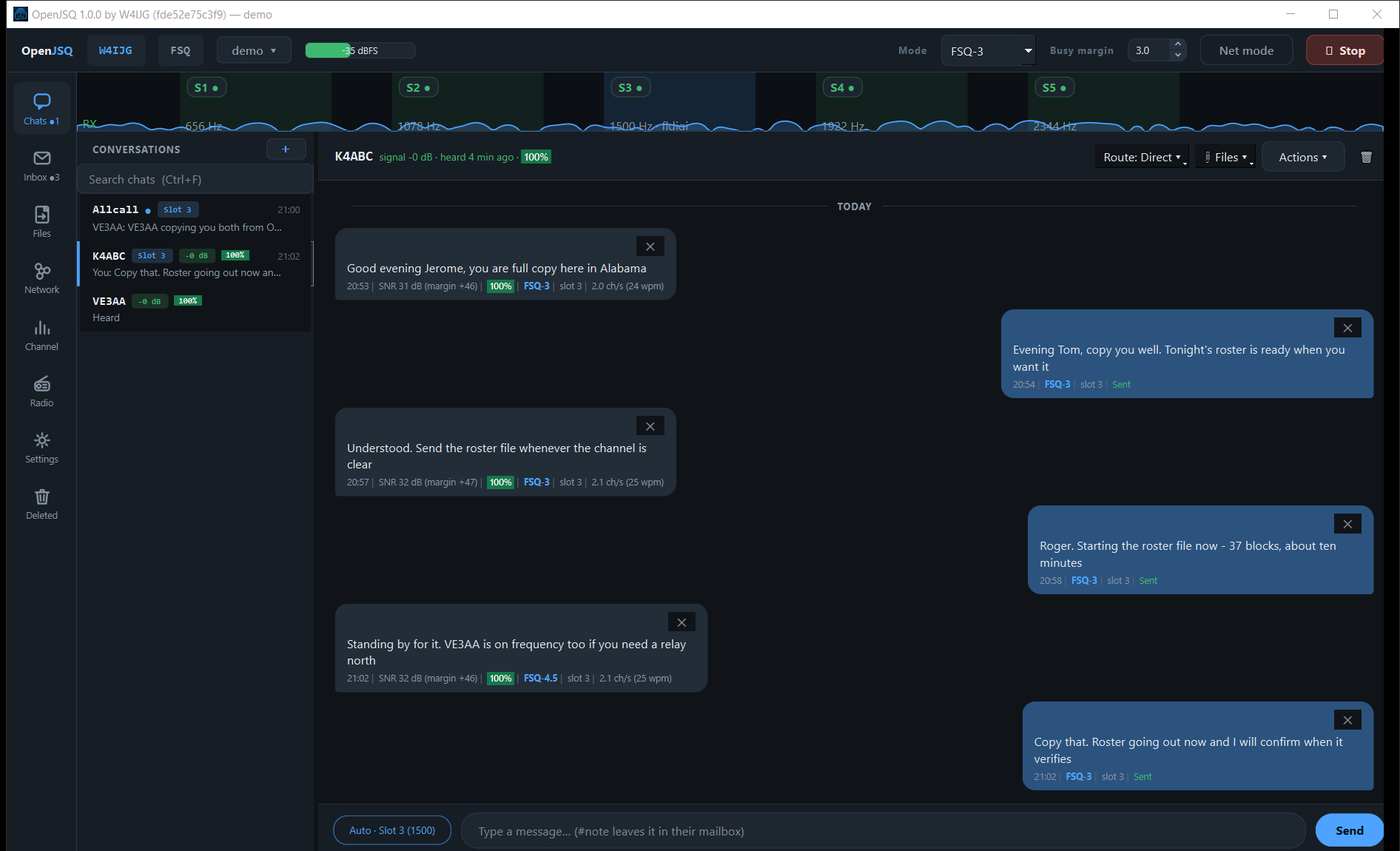
The OpenJSQ Chats page: a conversation list at left, and a callsign conversation at right with incoming messages showing signal, link quality and modem, and outgoing messages marked Sent.
Notice the signal details on incoming FSQ messages and Sent beneath outgoing messages. Sent is not confirmation from the other station. Open full-size screenshot
  • Choose a conversationSelect a station, Allcall or a group you have joined.
  • Send and watchUse Send, then read the status beneath your message. Verified packet chat adds acknowledgements and retries for supported direct exchanges.
  • Keep radio context closeThe modem and signal evidence stay beside your messages.
Read the operator guide →

02 · mail

Leave a letter for later.

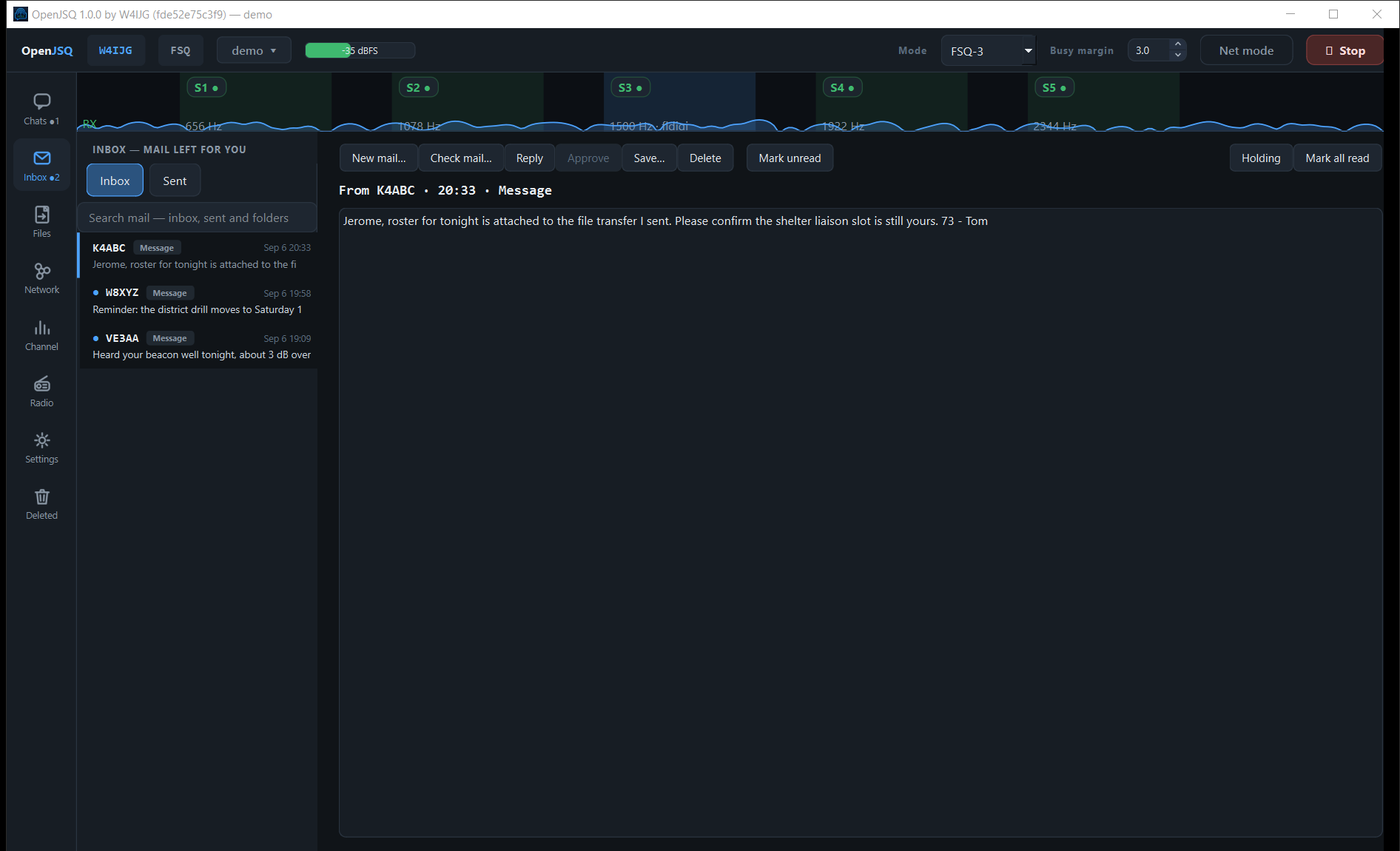
Open Inbox to read mail left for you. Your station can hold a letter for an absent recipient or use a capable mailbox station. Mailbox custody records accepted storage responsibility; final delivery needs separate evidence.

The OpenJSQ Inbox page: Inbox and Sent folders, a search box, three letters waiting in the list with the selected one open beside them, a toolbar with New mail, Check mail, Reply, Approve, Save, Delete and Mark unread, and a Holding button for mail kept for other stations.
Select a letter on the left to read it on the right. New mail, Reply and Holding sit above the message. Open full-size screenshot
  • New mail → composeAddress a letter and choose the appropriate delivery option.
  • Reply → continueSelect an incoming letter and use Reply to continue the exchange.
  • Holding → inspect custodyReview mail your station is keeping for others. Holding is not final delivery.

Read the operator guide →

03 · files

Send it. Finish it. Share it.

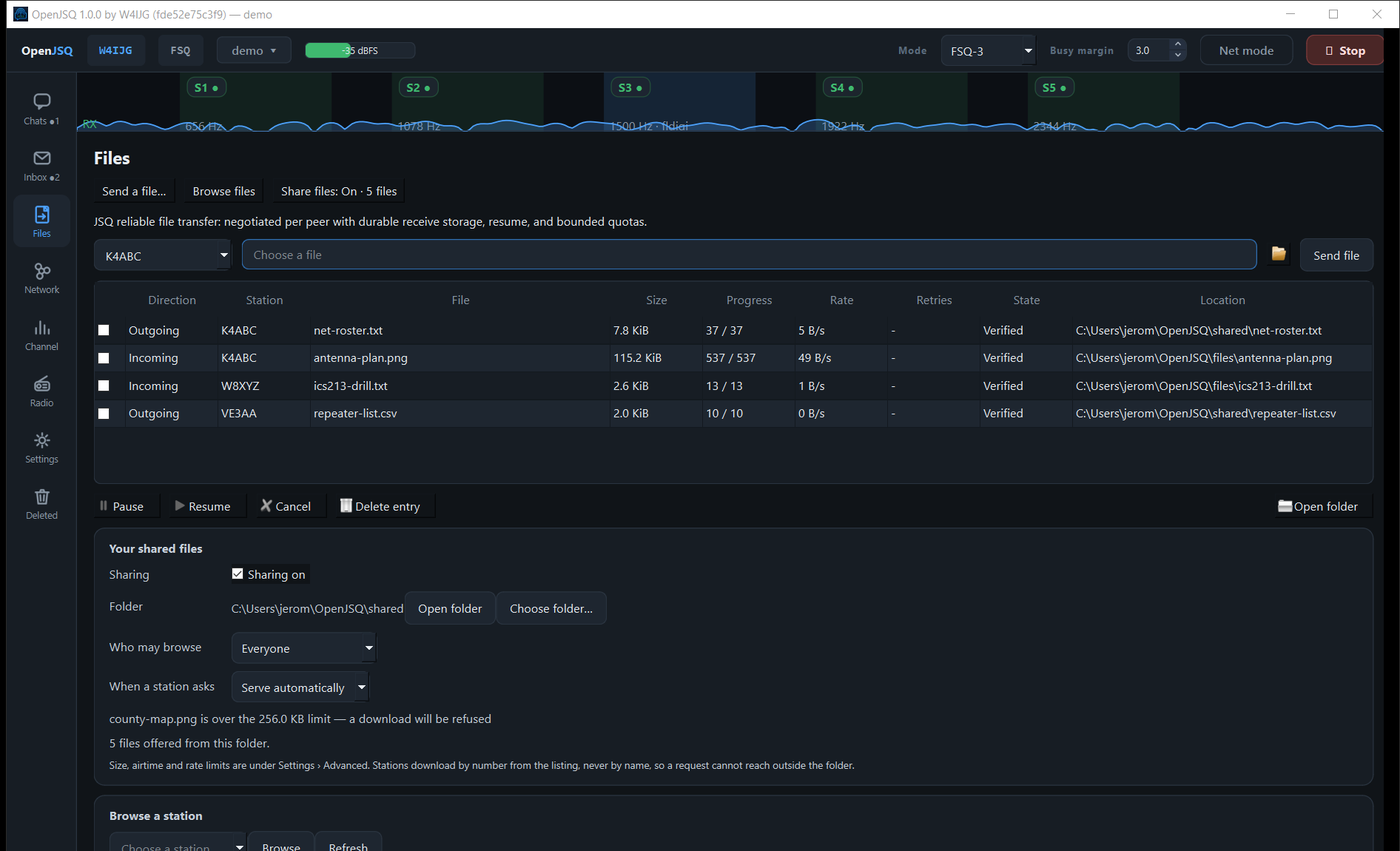
Choose a station and file, or browse a peer’s advertised shared files. Supported transfers recover missing pieces, resume after interruption and verify the complete file. Sharing remains subject to each station’s policy.

The OpenJSQ Files page: incoming and outgoing transfers listed with size, blocks completed, rate and a Verified state, and below them the shared-folder panel with sharing on, who may browse, and the over-size warning for one file.
Progress, Retries and State describe each transfer. Your shared files shows the offered folder, access policy and an oversized file that will be refused. Open full-size screenshot
  • Send file → track progressChoose a station and file, then use Send file. Progress and State show the transfer evidence.
  • Pause / Resume → continueControl the transfer with the row actions. Recovery can request missing pieces instead of repeating the whole file.
  • Sharing on → offer a folderChoose folder and Who may browse control your offer. Browse files requests a capable peer’s listing directly.

Read the operator guide →

04 · relay

Choose a station to carry it.

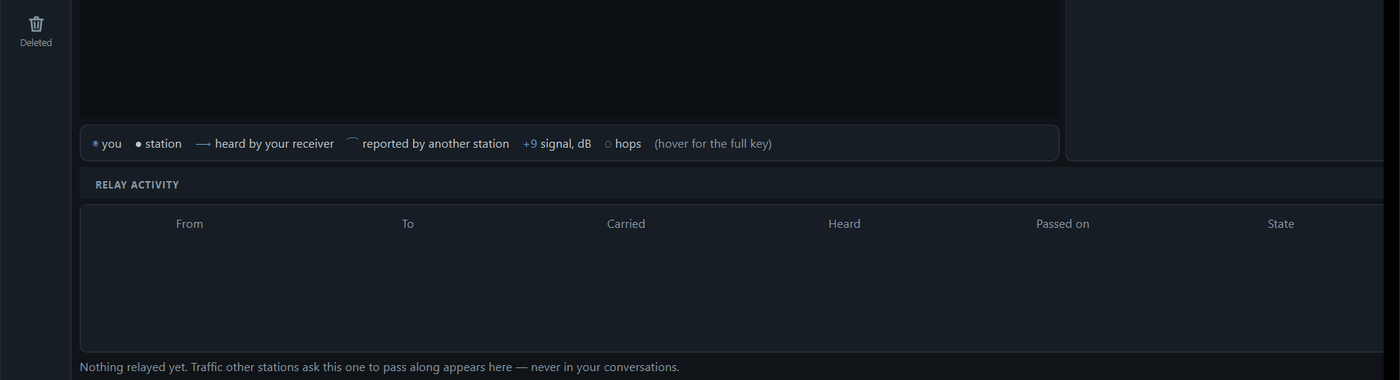
Use Route in a direct conversation to choose a willing relay that can reach your recipient. The original sender and destination stay attached. Relayed chat is Live; transmitting a relay request does not prove final delivery.

The Relay activity table on the OpenJSQ Network page, with From, To, Carried, Heard, Passed on and State columns.
Relay activity is on the Network page. This profile has carried no traffic: the empty table shows its structure, not a completed route. Open full-size screenshot
  • Route → via a stationChoose a heard station in the conversation’s Route control. Each hop depends on it being available and willing.
  • Relay activity → inspectFrom, To and State describe carried traffic when rows are present. It stays separate from your own conversations.

Read the operator guide →

05 · network

See who hears whom.

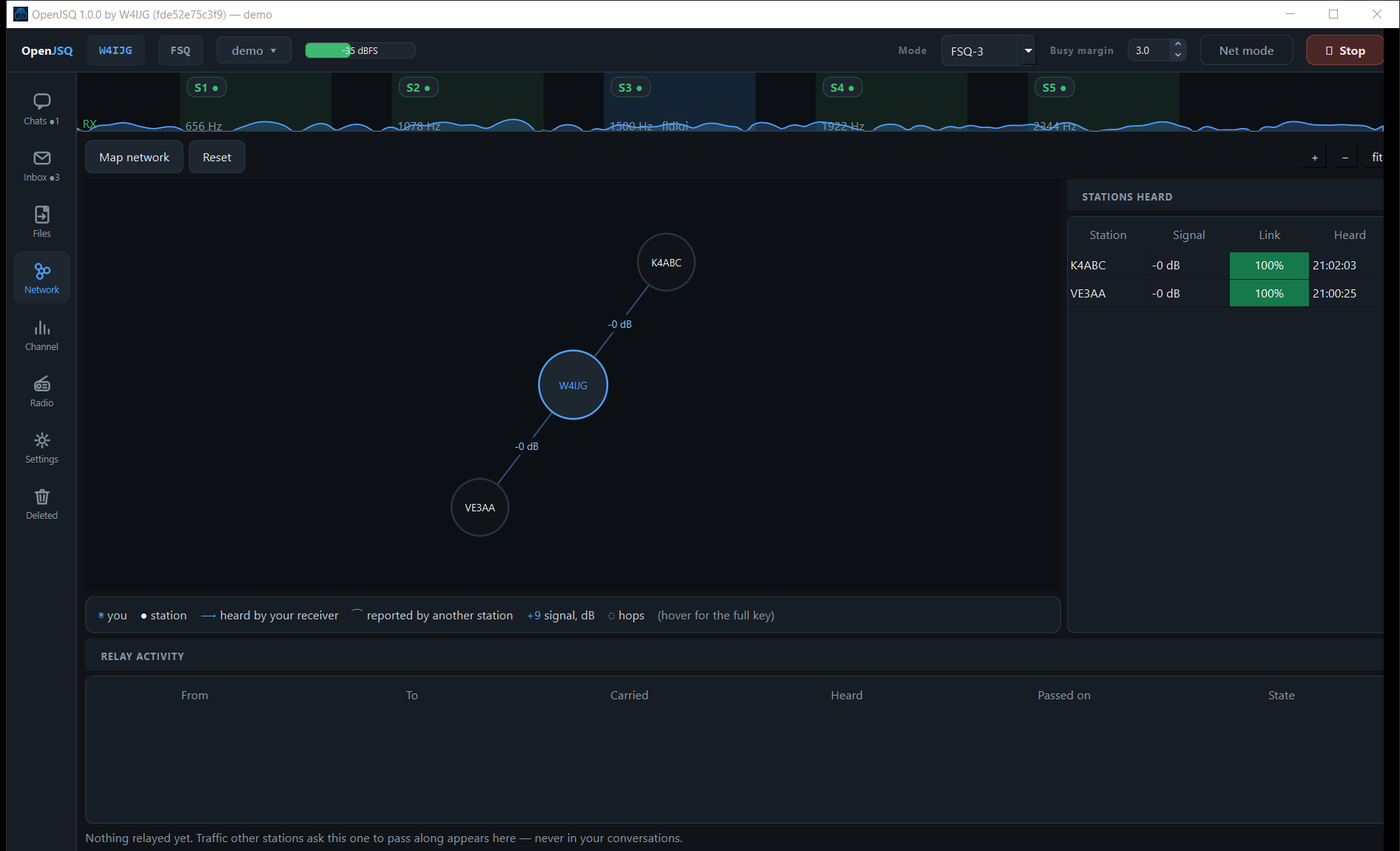
Start with stations your receiver has heard, then use Map network to request peers’ heard lists. Paths are directional: hearing a station does not prove it hears you or that a route is currently usable.

The OpenJSQ Network page: a map with this station at the centre and two stations it has heard, connection lines labelled with signal figures, the Stations Heard list beside it, and an empty Relay activity table below.
The two blue links are this receiver’s observations. Stations Heard lists signal and last-heard information; the relay table is empty. Open full-size screenshot
  • Map network → ask peersRequest heard lists to add observations beyond your own receiver.
  • Stations Heard → check evidenceCompare Signal, Link and Heard. A recent reception does not guarantee the return path.
  • Read the line legendDirect observations and paths reported by another station use different markings. Keep the source and direction in mind.

Read the operator guide →

06 · channel

Inspect what was decoded.

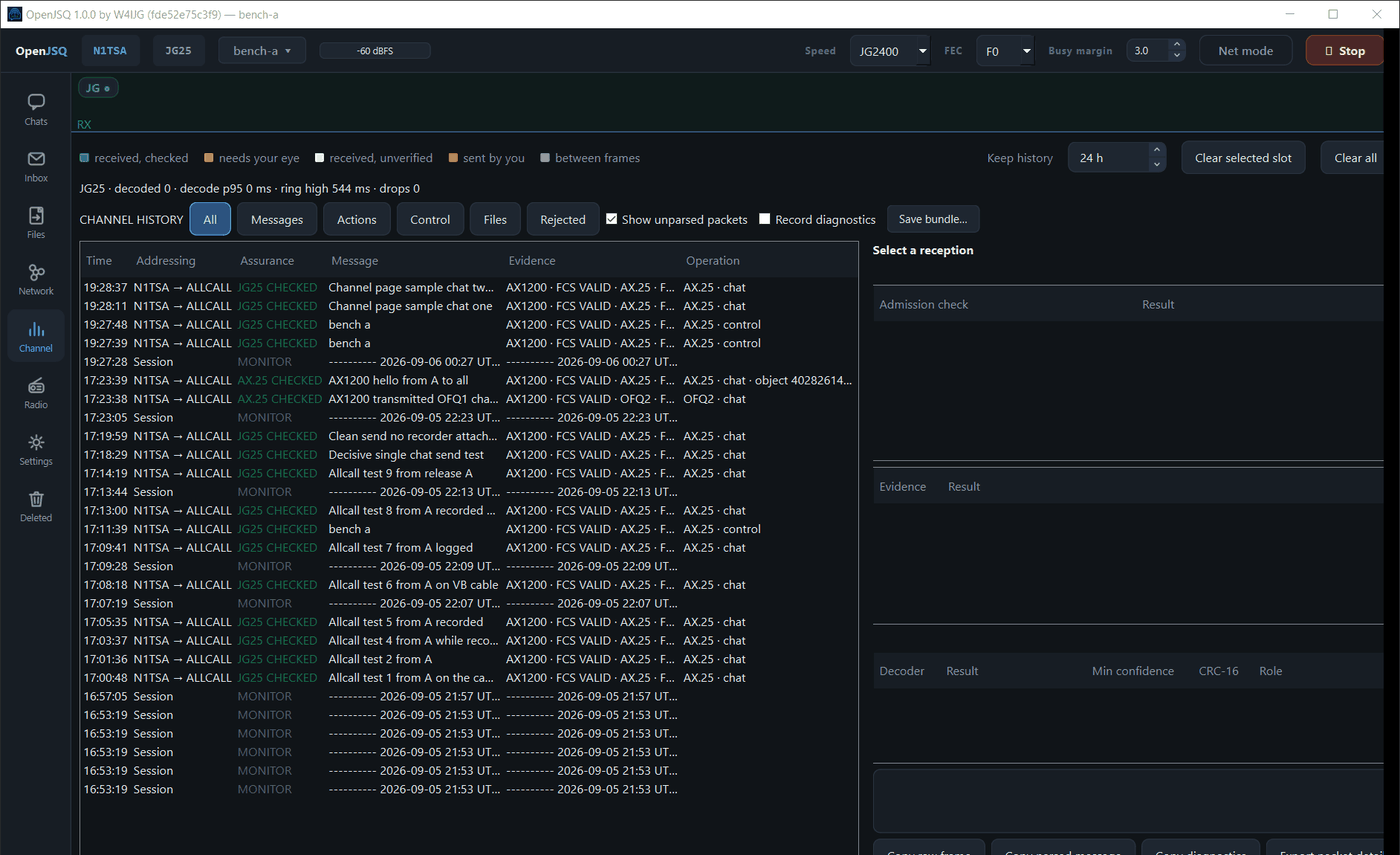
Channel is the diagnostic view behind your conversations. Filter traffic, select a reception to inspect its evidence, and save a diagnostic bundle when you need help.

The OpenJSQ Channel page: a history of received and sent frames, filters for message types, modem counters, and empty reception detail panels awaiting a selected row.
History rows are present, but no reception is selected: the right side says Select a reception. The empty panels do not show evidence for a particular row. Open full-size screenshot
  • Select a reception → inspectChoose a history row to populate its admission and decoder details.
  • Save bundle → reportCollect diagnostic evidence for troubleshooting with Save bundle.

Read the operator guide →

07 · radio

Connect the station you have.

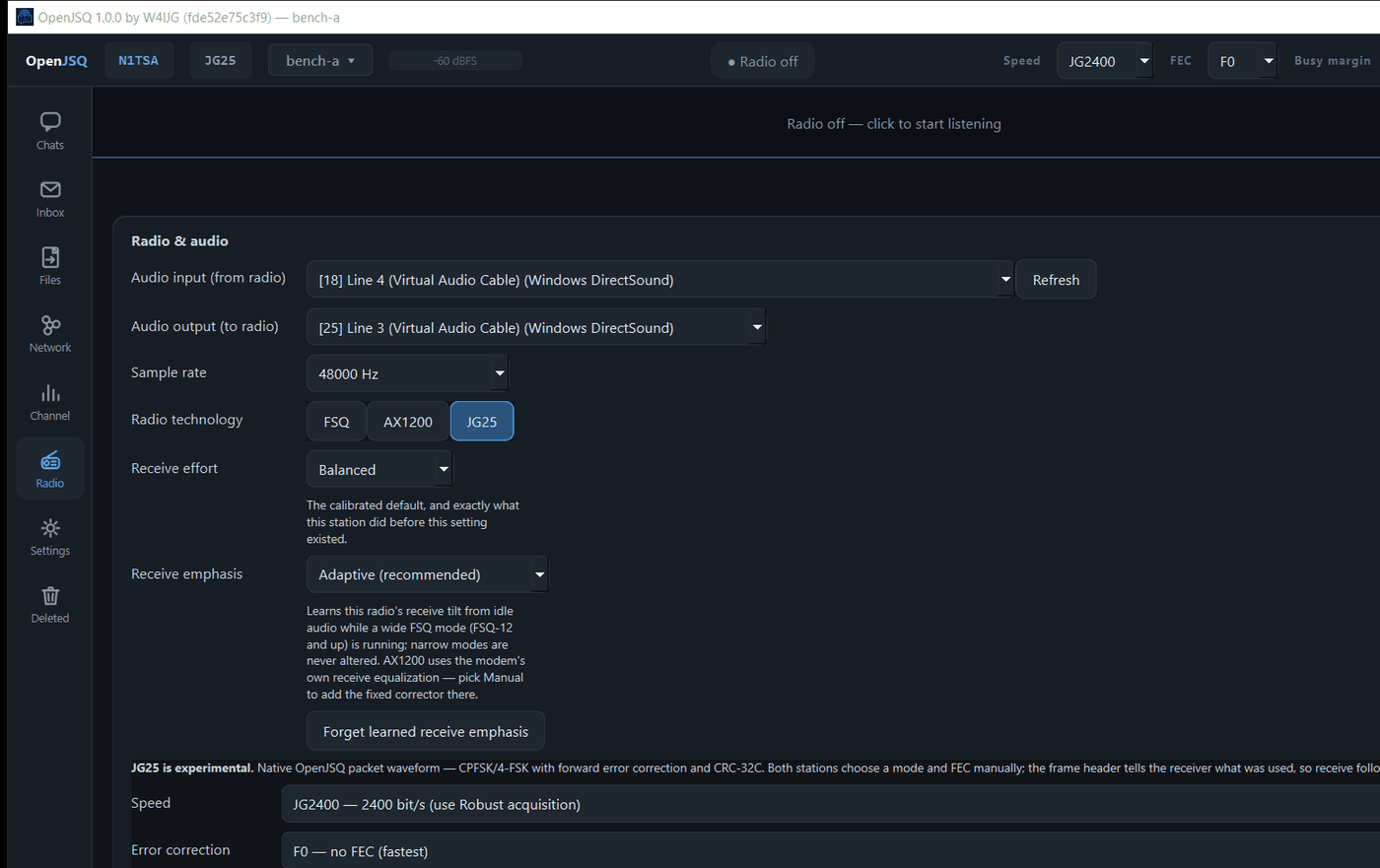
Use an audio interface with OpenJSQ’s modem, or connect AX1200 through an external KISS TNC. FSQ supports FM/HF operation. FM packet can use AX1200, or JG25 where the build and peer support it.

The OpenJSQ Radio page: audio input and output device lists, sample rate, a modem selector with FSQ, AX1200 and JG25, receive controls, and JG25 speed and error-correction settings.
This image shows the audio/modem controls with JG25 selected. It is one setup example, not a requirement for using an FM radio. Open full-size screenshot
  • Audio → OpenJSQ modemSelect SignaLink, DigiRig or radio USB audio input/output and supported VOX or serial PTT.
  • KISS → packet TNCUse serial or network KISS, including Dire Wolf. Bluetooth serial uses the serial route; BLE KISS needs compatible hardware and build support.
  • Optional CAT → controlflrig or Hamlib rigctld provides frequency/control and optional CAT PTT alongside the audio or packet path.

Read the operator guide →

08 · settings

Decide how your station behaves.

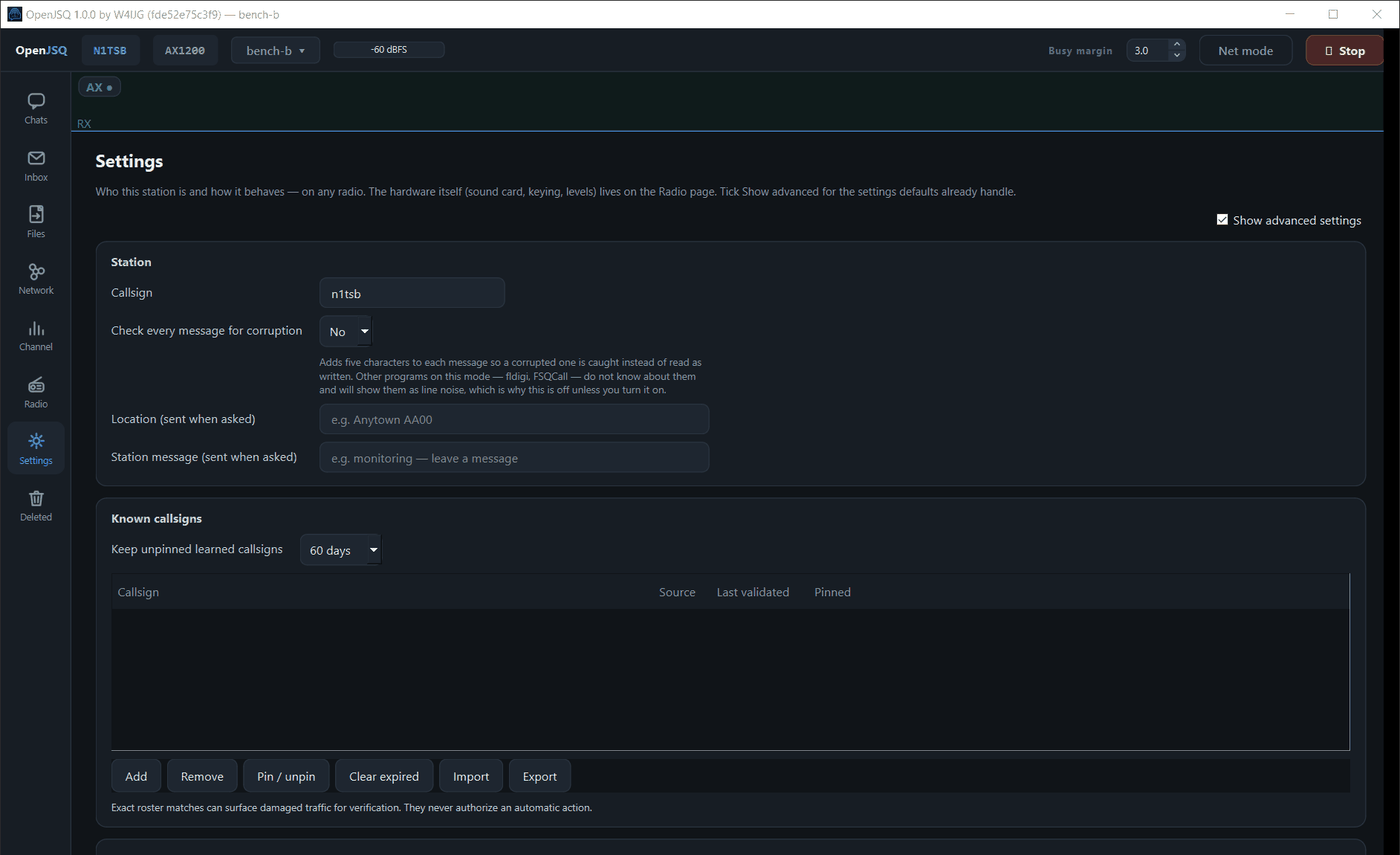
Set your callsign, location and station message, then choose the automatic services you want to offer. Settings governs identity and policy; sound devices, modems and keying live on Radio.

The OpenJSQ Settings page with Show advanced settings enabled: station callsign, optional corruption check, location and station message fields; and a Known callsigns roster with management buttons.
Show advanced settings is enabled here. Station fields and the empty Known callsigns roster are visible: this is the expanded configuration view. Open full-size screenshot
  • Station → identify yourselfSet Callsign, Location and Station message for information other stations can request.
  • Known callsigns → maintainUse Add or Import to build the roster. A roster match is supporting information, not proof of operator identity.
  • Advanced → consult the guideRead the guide before changing optional integrity and compatibility settings.

Read the operator guide →

Ready for your station?

Follow the operator guide from setup to daily operation.

Open operator guideRelease status & setup